Skip to article
boomationDocs

Search documentation

Search runs on your device. Your query is not sent anywhere.

EnglishDocumentation language
Back to website
Docs/Browse and find

Board view

Scan bookmarks as groups rather than one long list.

On this page

See the groups

  1. Open a page and select Board.
  2. Open View settings and choose the grouping that fits the task, such as Category or Tags.
  3. Review the group labels and counts, then open or edit a bookmark from its card.
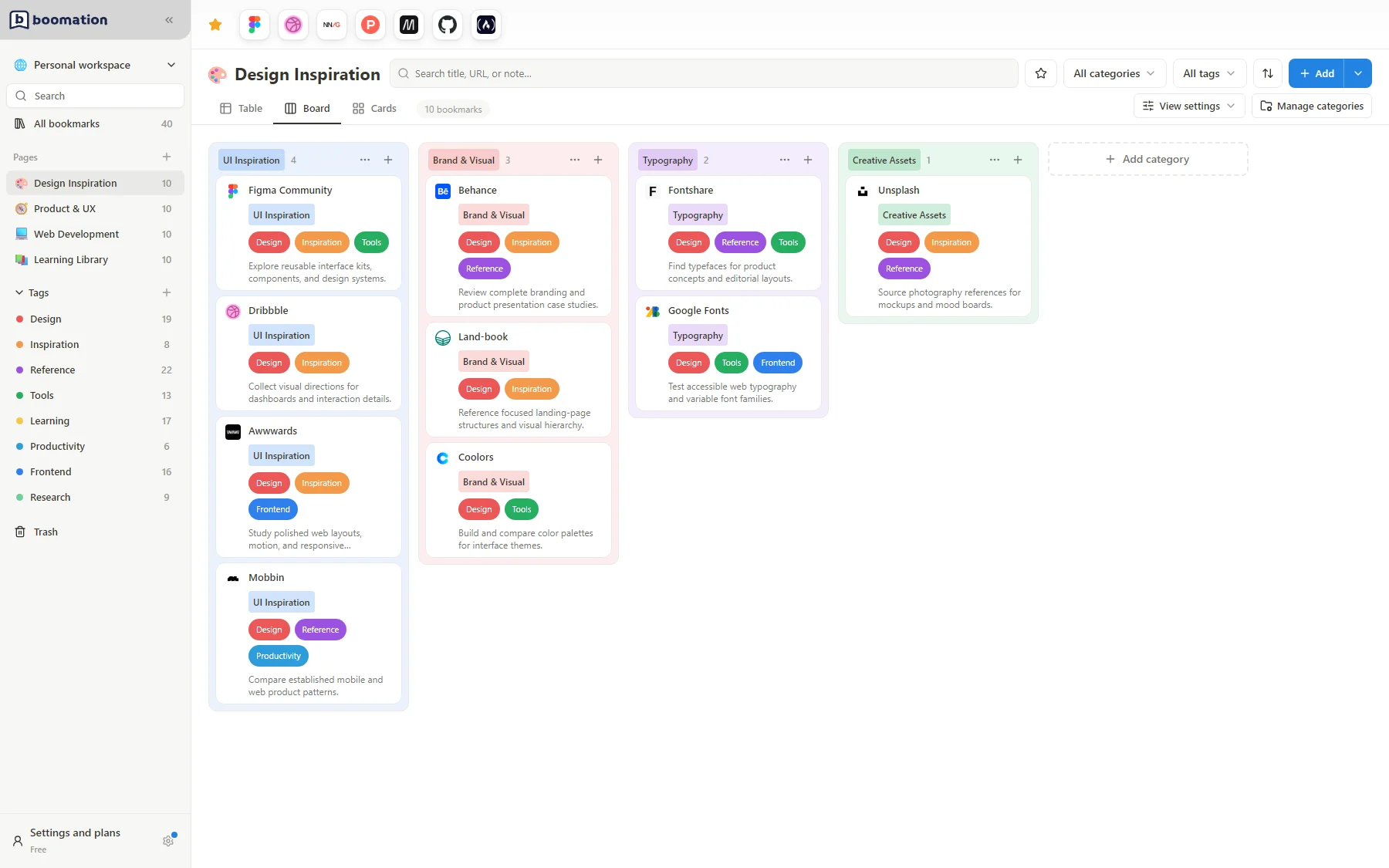
English Board view with category columns and bookmark cardsEnlarge screenshot
A board puts each group in a distinct part of the workspace.

Adjust density and layout

In Board, use View settings to choose Horizontal or Masonry, Compact, Color columns and visible fields. Layout, Compact and Color columns are Board-only options, not Cards settings. A horizontal board keeps groups alongside one another; masonry uses available space differently. Hide empty groups when unused groups make the page harder to scan.

Understand repeated appearances

When grouped by tags, the same bookmark can be visible in several groups because it has several tags. Editing that bookmark updates the underlying record. Change grouping rather than deleting a link just because it appears in multiple groups.