
Understand the three flows
| Format | Behavior |
|---|---|
| Chrome-compatible HTML | Imports add pages and bookmarks; exports are for browser bookmark interchange. |
| Single-workspace boomation JSON | Exports the current workspace; restore replaces its workspace settings, pages, bookmarks and tags, but retains existing Trash. |
| All-workspace backup JSON | Restores multiple workspaces with a choice to add copies or replace all current workspaces. Trash is not included. |
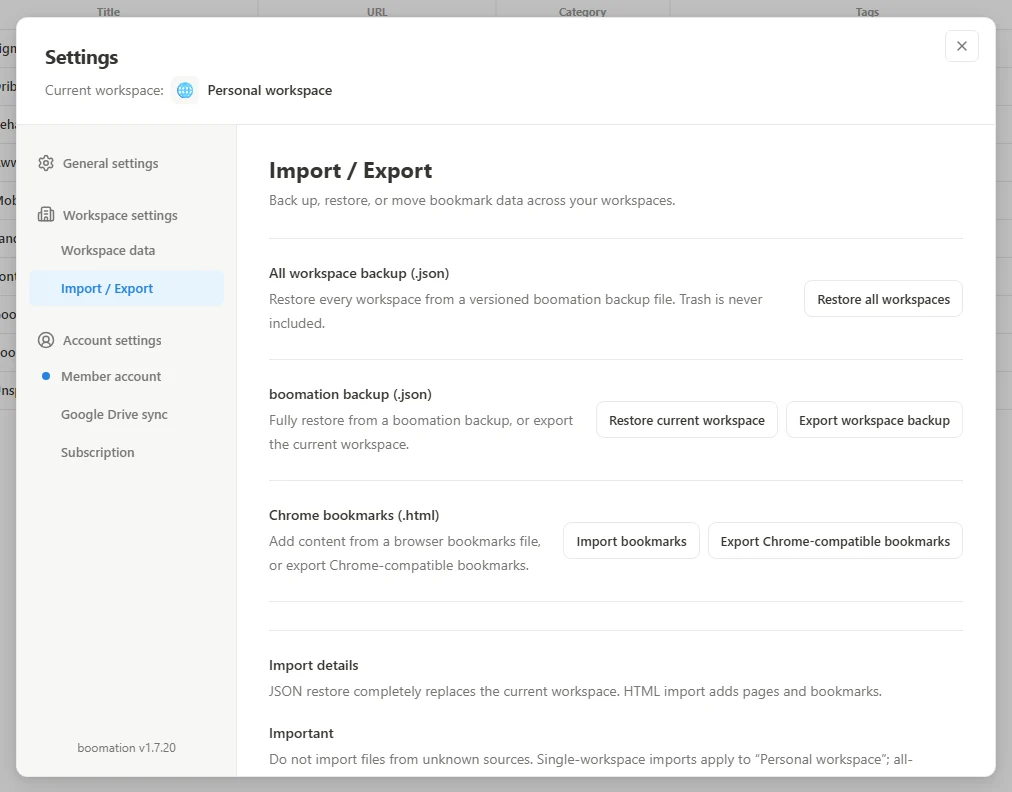 Enlarge screenshot
Export before replacing anything
- Switch to the workspace you want to protect.
- Open Settings and plans → Import / Export.
- Choose Export workspace backup for a boomation JSON copy or Export Chrome-compatible bookmarks for HTML.
- Check that the downloaded file exists and keep it somewhere you control.
Review the destination and confirmation
For HTML, choose Import bookmarks and inspect the completion summary. Unsupported entries and plan limits can reduce the imported count. For single-workspace JSON, Restore current workspace replaces workspace settings, pages, bookmarks and tags but retains existing Trash; the workspace must be editable and within the bookmark limit. All-workspace recovery is not subject to those Free capacity gates: choose Restore all workspaces, then Add as workspaces to keep the original collections or Replace all current workspaces to replace them. Restored collections contain no Trash.