
Choose a schedule
A scheduled check creates a backup only when bookmark or workspace data has changed. It does not create a new file on every interval when nothing changes. Browser availability, network access and authorization can affect when a check completes.
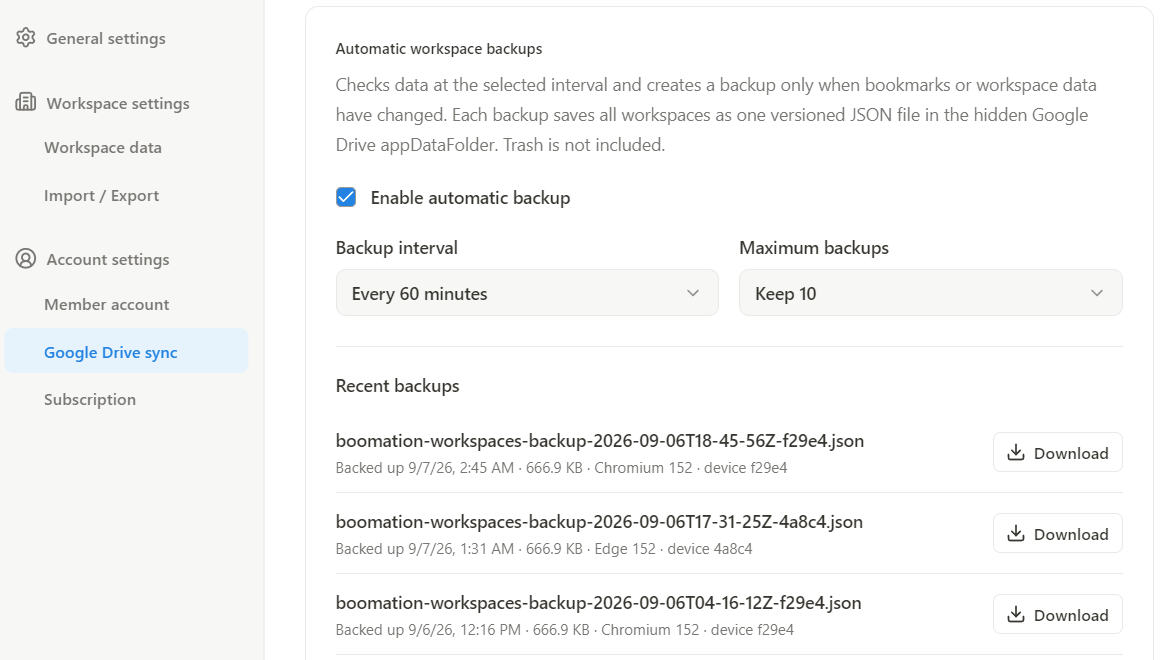
- Open Settings and plans → Google Drive sync and find Automatic workspace backups.
- Turn on Enable automatic backup.
- Choose a check interval of 15, 30, 60, 90 or 120 minutes and a maximum of 5, 10, 15 or 20 backups.
- Check Recent backups for the result after data changes and the next scheduled check.
 Enlarge screenshot
Know what is protected
Each versioned JSON contains all workspaces, pages, bookmarks and tags at that time. Trash is never included. Backup files and schedule settings live in Drive's hidden appDataFolder; the backend does not receive them. Reaching the selected retention count removes older backup versions as new ones are created.
Download, then restore deliberately
- Download the version you want from Recent backups.
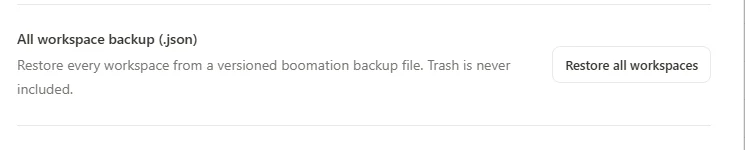
- Open Import / Export → Restore all workspaces and select the downloaded JSON.
- Choose Add as workspaces to keep the current set and add copies, or Replace all current workspaces to replace it.
- Review the confirmation. After restore, the resulting collection can synchronize through the normal Drive sync flow.
 Enlarge screenshot