
Use boomation without an account
Guest mode keeps the working collection in this browser profile and does not start Google Drive authorization. It is a useful way to begin. Keep an export of important data because a local collection is not automatically available on another device.
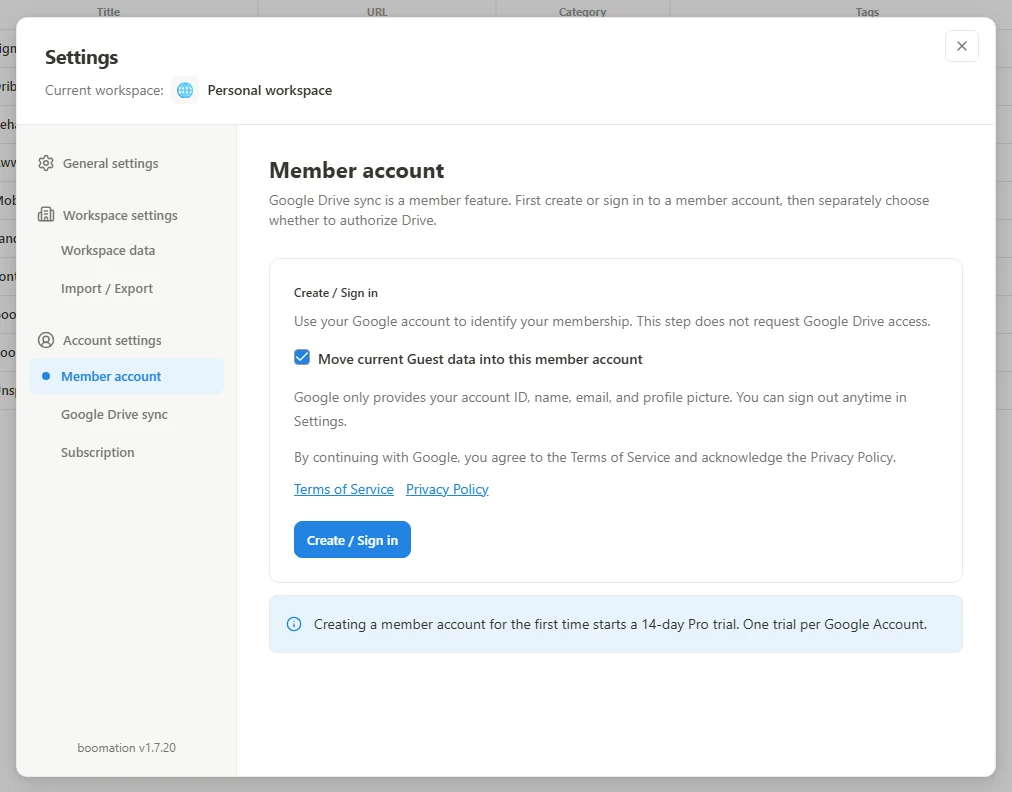 Enlarge screenshot
Create or sign in to a member account
- Open Settings and plans → Member account. Before signing in, review the default-checked Move current Guest data into this member account option.
- Review the terms and privacy notice, then choose Create / Sign in and the Google account you intend to keep using.
- Return to boomation and review any data or account-choice message before continuing.
- Connect Google Drive separately if you want synchronization; a completed member sign-in alone does not connect it.
Before signing out
Sync or export unsynced changes first. Signing out clears this browser's member session and member cache and returns to a Guest workspace. It does not delete the member account or existing Drive files. Reuse the originally linked Google account when signing back into member data.