
What happens when it opens
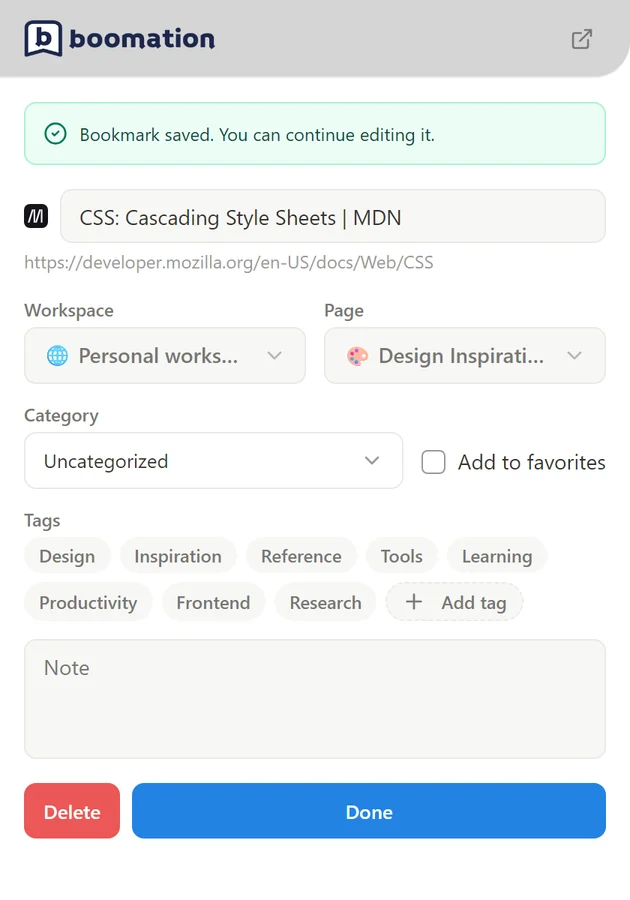
Quick Popup begins saving the current tab to the selected destination. Once the bookmark is saved, you can continue editing it. Opening this form is not just opening an unsaved draft: read the saving or saved status before closing it.
 Enlarge screenshot
Adjust the saved bookmark
- Check Workspace and Page so the bookmark goes to the right collection.
- Change Category and Tags, add a Note, or turn on Add to favorites.
- Choose Done to save these edits. The initial Bookmark saved message does not confirm later changes; closing the popup leaves those edits unsaved. Resolve any error before moving on.
Save the current page with Alt+B
- While viewing a normal website, press Alt+B, the extension's default save-bookmark shortcut.
- Quick Popup opens for that page even if the toolbar normally uses Full. Check the destination and initial saved status.
- If you change the title, category, tags or note, click Done to save those edits.
Use it from other entry points
The Save to boomation right-click action and Alt+B save-bookmark shortcut use the quick-save flow even when the toolbar is set to Full. Use Full Popup instead when you want to browse the collection or choose several open tabs.