
Install from the Chrome Web Store
- Use Add to Chrome on the boomation website to open the official Chrome Web Store listing.
- Install the extension in Chrome or a compatible Chromium browser, such as Edge or Brave. Review the browser's permission prompt.
- Open the browser's Extensions menu and pin boomation if you want its toolbar button always visible.
- Open a new tab or the boomation main page to finish the initial setup.
Choose your starting point
On first launch, choose Continue with Google to create or sign in to a member account, or Continue as Guest to begin locally without signing in. Review the notices in this welcome dialog before choosing. Member sign-in and Google Drive authorization are separate steps.
Next, import existing browser bookmarks or choose Skip for now to explore the sample workspace. Importing copies links into boomation; it is not a two-way connection to the browser bookmark tree.
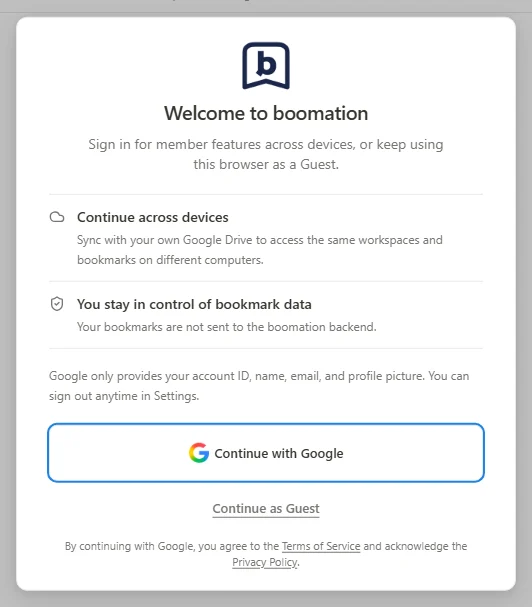 Enlarge screenshot
Make it comfortable
Open Settings and plans → General settings to choose the interface language, theme and Toolbar button behavior. Use the guided-tour replay option if you want to revisit the introduction.