
Connect from settings
- Open Settings and plans → Google Drive sync.
- Choose the connection action and review the Google authorization request.
- Use the Google account linked to your boomation member account.
- Return to boomation and wait for the sync status. Resolve any first-sync choice before continuing in Full Popup.
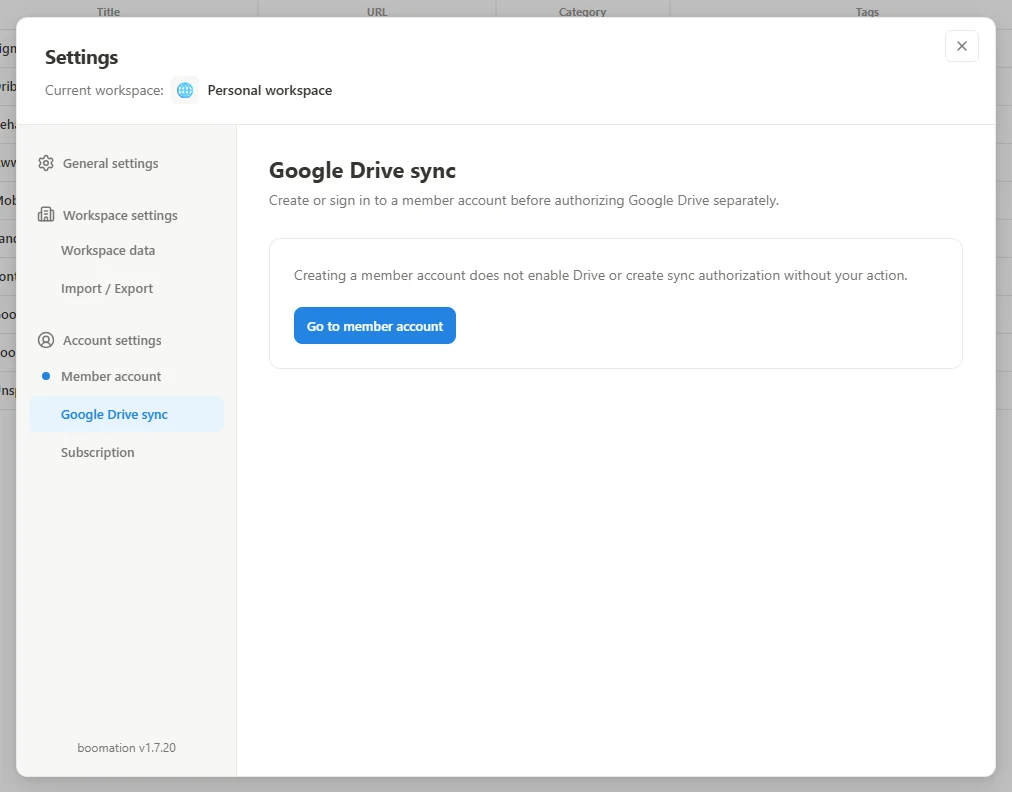 Enlarge screenshot
Read the first-sync choice carefully
If this device and Drive both contain data, boomation asks which version to keep. Use cloud data replaces the local member collection with the cloud version. Replace cloud data with this device makes this device's collection the cloud version. These are replacement choices, not an automatic merge.
Use another browser or computer
Install boomation in the other browser, sign in to the same member account and connect the matching Drive account. Review the initial sync choice there too. Sync uses the hidden appDataFolder rather than a normal folder you edit in the Drive web interface. A working network and valid authorization are needed for updates between devices.
- Disconnecting Drive stops sync but retains local data and existing Drive files.
- Sync propagates collection changes; automatic backups keep separate versions and must be enabled separately.
- Resolve an expired authorization by reconnecting the same account, not by deleting the collection.