
Choose the starting view
A fixed destination also controls Full Popup (workspace and page) and quick search (workspace). In previous-location mode, Full Popup and quick search remember their own last locations independently. Reopen each surface to verify; changing the workspace during use does not replace a fixed startup destination.
- Open Settings and plans → General settings.
- Under the startup-view setting, choose the previous location or a fixed destination.
- For a fixed destination, choose the workspace and page, or All bookmarks where available.
- Open the main page again to confirm the starting location.
 Enlarge screenshot
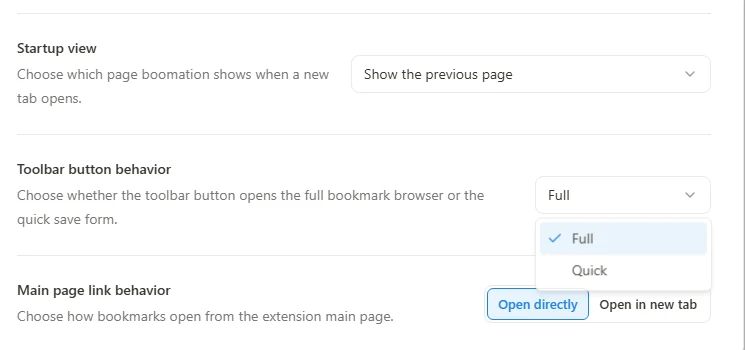
Choose Full or Quick
Toolbar button behavior → Full opens a compact collection browser. Quick opens the current-page saving form. Choose Full if you frequently retrieve links while browsing, or Quick if capturing the current page is the usual task. The right-click save action and save-bookmark shortcut still invoke quick saving.
Decide how links open
The main-page and popup link-opening preferences are separate controls. Choose direct opening or a new tab according to the surface you are using, then test with a nonessential link. Changing this setting does not rewrite saved URLs or affect the documentation website's navigation.