
Browse without opening a new tab
- Click the pinned boomation button in the browser toolbar.
- Choose a workspace, then select a page or browse the available collection.
- Search the list, change its sort order or open a saved bookmark.
- Use the open-full-app button when you need the main page's larger editing area.
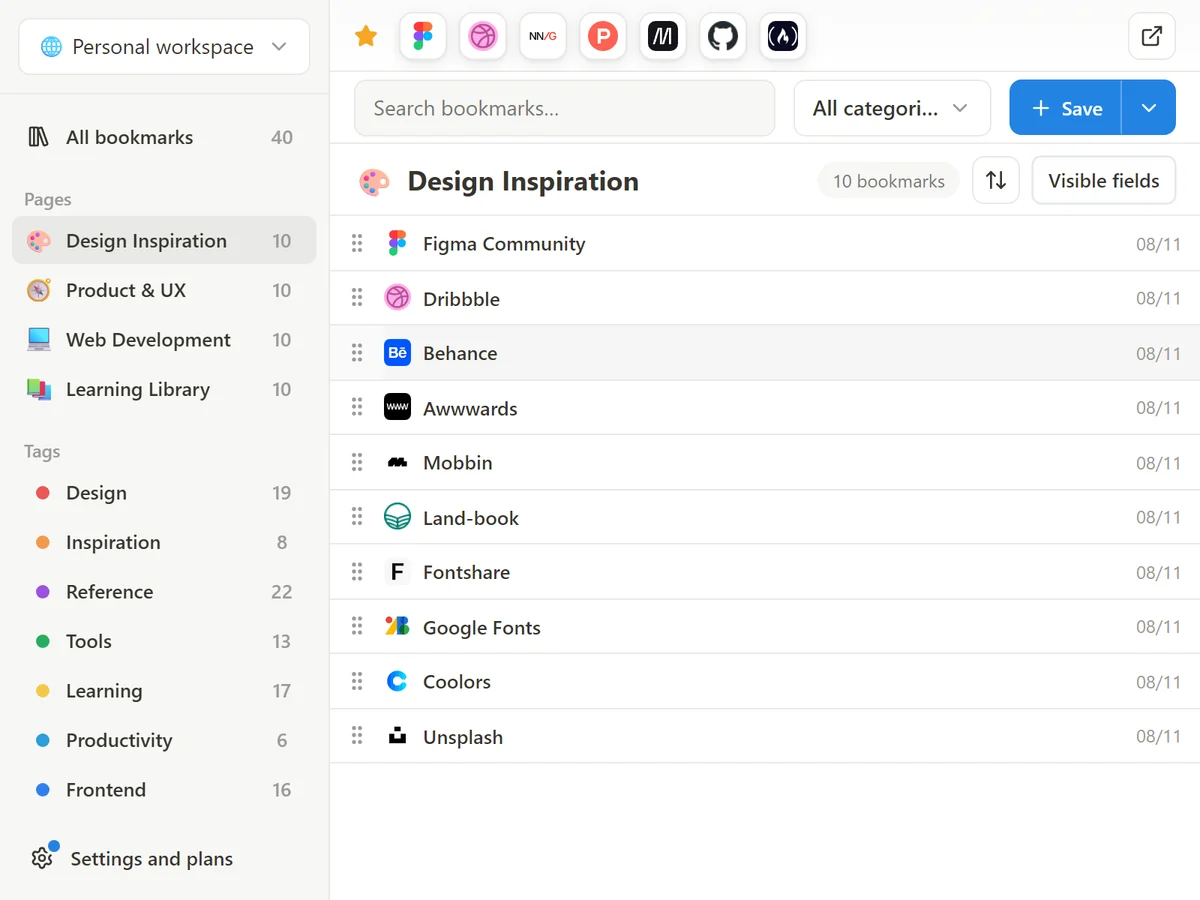 Enlarge screenshot
Save the current page or selected tabs
Save opens the saving flow for the website you are viewing. Save tabs opens the main page's tab picker; review the selection and destination before confirming. Browsing Full Popup on its own is different from invoking the quick-save action.
Show only what you need
Open Visible fields to show or hide URL, category, tags and note details. These choices change the list's presentation, not the stored bookmark data. Sorting controls show the active field and direction; choose Manual order to return to your arranged order.